
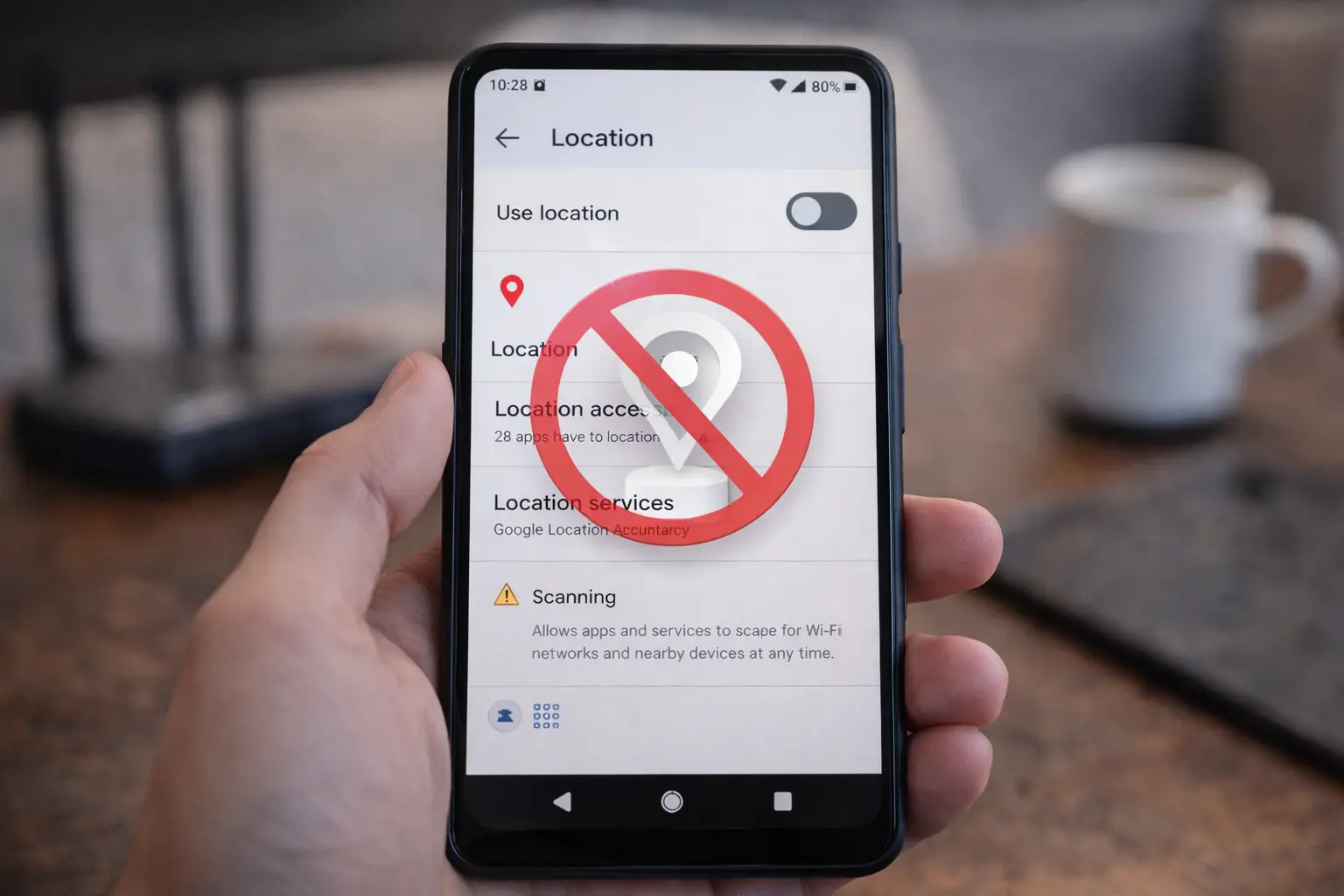
If you care to know, your every move in cyberspace is being monitored. Your online and app behavior is constantly tracked and recorded. Every time you use your phone, a digital footprint is created that may be used to track your whereabouts, purchases, and media preferences.
Protect Your Android Device From Tracking
It’s highly unlikely that you’ll ever be completely untraceable, even if you take every precaution to disable tracking on your phone. Even with privacy-focused apps, your phone will be transmitting data as long as it is in your possession.
Even when users disable location history and other tracking options, Google is still being sued for allegedly keeping tabs on them.
One of the drawbacks of living in a world where technological ecosystems are becoming more interconnected is this. The more your life revolves around electronic devices, the simpler it is to keep tabs on you. Fortunately, there are ways to limit the extent to which your online activity is monitored.
Here are 4 ways to prevent your Android device from following you around.
1. Turn Off Location, Wi-Fi, and Mobile Data
Turning off location services, Wi-Fi, and mobile data on your Android device will prevent it from tracking your whereabouts. If you disable these features, your phone won’t be able to communicate with the outside world. Turn on Airplane mode if you also want to disable your mobile data connection.
To achieve this, go to the “Quick Settings” section of your control panel. Even though this option is practical, it is not ideal because it requires a working internet connection and cellular network to allow you to use your phone normally; yet, if you need peace of mind, this way helps.
2. Pause or Delete Your Google Activity
It’s no secret that Google stores a lot of personal information about its users. Web and app activity, location history, and YouTube viewing history make up these datasets. The Google app provides access to and management of this information.
If you want to put a hold on your Google services, do as follows:
- Open the Google app and tap on your profile picture.
- Tap Manage your Google Account and go to the Data & privacy tab.
- Under History settings, tap Web & App Activity > Turn off > Pause.
- Do the same for Location History and YouTube History.
Follow the steps below to delete your Google activity:
- Under History settings, tap Web & App Activity > Manage all Web & App Activity.
- Tap Filter by date & product in case you want to remove particular items only.
- Tap Delete and select if you want to delete activity from the Last hour, Last day, All time, or set a custom range.
- You can also tap Set up automatic deletions to remove your activity at regular intervals. Select to auto-delete activity older than three, 18, or 36 months.
- You might be asked to select which activity to delete on the next screen. Select your activity and tap Next > Delete.
- Do the same for Location History and YouTube History.
3. Turn Off Personalized Search Results
Stopping the display of individual search results is another technique to reduce the possibility of being tracked through your mobile device. If you do this, your Google searches will return broader, less specific results about the subject you’re interested in, rather than the most relevant ones.
Here’s how to do this:
- Open the Google app and tap on your profile picture.
- Go to Settings > Personal results.
- Tap the toggle switch to disable personal search results.
4. Remove Location Permissions From Unused Apps
Intuitively, you give an app access to your location, camera, microphone, calendar, files, and call history when you install it. Apps can collect, store, and utilize your data for marketing reasons if you grant them the aforementioned permissions. The good news is that you can undo these rights at any time.
In order to accomplish this, please follow these steps:
- Go to Settings > Privacy > Permission manager.
- Tap a permission to see which apps are using it.
- Tap an app under Allowed and select Don’t allow.
- If prompted with a warning, tap Don’t allow anyway.
- Alternatively, you can select Ask every time or Allow only while using the app.
Taking a few minutes to adjust these settings ensures that your personal location data remains under your control. Regularly reviewing your privacy settings also helps you stay aware of which apps have access to sensitive information.
With these simple steps, you can use your Android device more confidently while maintaining better control over your digital privacy.